SmartESS is the free monitoring app from Shenzhen Eybond that works with the small "Wi-Fi Plug Pro" dongle on many budget hybrid inverters, including MUST. To set it up, join the dongle's own WiFi (its name is the PN on the label, password 12345678), open SmartESS, tap Wi-Fi Config → Network Setting, enter your home WiFi, then register and add the dongle's PN. When all four lights stay on, it's working. Most "SmartESS not working" problems come down to the WiFi, not the inverter: the dongle only talks to 2.4 GHz networks, so a 5 GHz-only router, a changed router password, or a brownout that kills your internet will all show "offline", even while your solar keeps running.
Last checked 5 Nov 2026 against Eybond's SmartESS page and Wi-Fi Plug Pro spec sheets, the SmartESS quick guide supplied for MUST inverters, PowMr's WiFi module guide, and the Google Play and App Store listings. Screens change between app versions, so follow the prompts on yours.
Got a Deye inverter instead? That one uses a different app. See our Solarman app guide.
Is SmartESS the right app for my inverter?
Check the dongle, not the inverter. If the quick guide or sticker on your stick shows SmartESS (iOS) / SmartESS (Android) QR codes, this post is for you. The SmartESS guide supplied for MUST inverters (Wi-Fi Plug Pro-25 guide) and the inverter maker Anern both use it.
Not every budget brand does, though. PowMr's own compatibility table lists Solarman, Solar of Things and Sun Wise for its current WiFi modules, not SmartESS. Ganun din: the stick that came in the box decides the app.
What you see | What it is |
|---|---|
SmartESS (Google Play) | Free; by Shenzhen Eybond Co., Ltd.; 500K+ downloads, 2.0 stars from 5.48K reviews; updated 28 Oct 2026 |
SmartESS (App Store, Philippines) | Free; copyright Shenzhen Eybond; version 3.56.0; needs iOS 13 or later |
SmartESS on a computer | Eybond's web version is www.dessmonitor.com |
SmartClient | Eybond's separate app for solar-only (PV) inverters, per the Play listing |
The 2.0-star Play rating tells you the app isn't perfect, and screens shift between versions. If a button in this guide has moved, look for the same words (Wi-Fi Config, Network Setting) nearby.
How to set up SmartESS (first time)
These steps follow Eybond's quick guide for the Wi-Fi Plug Pro (the MUST version is linked above).
- Plug in the dongle. Line up its plug with the inverter's communication port and push it in. Eybond says the PlugPro takes its power from the device, so there's no separate adapter.
- Download SmartESS from Google Play or the App Store (or scan the QR code on the guide).
- Join the dongle's WiFi. On your phone's WiFi list, pick the network named after the dongle's PN (printed on its label). Initial password: 12345678.
- Point it at your home WiFi. Open SmartESS → Wi-Fi Config → Network Setting, choose your router and type its password. The dongle restarts.
- Reconnect your phone to your normal WiFi or mobile data.
- Register an account, log in, and tap + to add the datalogger by scanning or typing the PN.
- Check the lights. Per the guide, all 4 LEDs staying on means normal working status.
Only one phone can join the dongle's own WiFi at a time, according to Eybond's PlugProA-03 and Bar-08 spec sheets. If step 3 keeps failing, make sure no one else in the house is connected to it.
Your router has to pass these checks
Requirement | Why | Source |
|---|---|---|
2.4 GHz WiFi (802.11 b/g/n) | The radio only works at 2.412 to 2.484 GHz; 5 GHz won't show up | Eybond spec sheets |
WPA or WPA2 password | Listed encryption is WEP, WPA/WPA2 | Eybond spec sheets |
Split "Smart Connect" into separate 2.4G and 5G names | Dual-band steering can push the setup onto 5 GHz | PowMr guide |
Plain letters and numbers in the WiFi name and password | Spaces or symbols like @ _ - & * may not be read | PowMr guide |
Signal of 2 to 3 bars at the inverter | Test with your phone where the inverter hangs | PowMr guide |
The PowMr rules are written for PowMr's dongles, but they're good habits for any WiFi stick. Range on paper is 30 m (Bar-08, built-in antenna) to 100 m (PlugProA-03, external antenna), both in an open area. Concrete walls and a metal inverter room cut that a lot, so trust the phone test, not the brochure.
Worked example (Solar Leyte, labelled): checking a WiFi name. A Naval home's router broadcasts "Juan's WiFi 5G". That name fails three ways: it's a 5 GHz band, it has a space, and it has an apostrophe. Turning on the router's separate 2.4 GHz network and naming it "JuanWiFi24" fixes all three before you even open the app.
What the 4 lights on the Wi-Fi Plug Pro mean
The quick guide names the lights PWR, COM (printed CCM on some units), NET and SRV. Eybond's spec sheets define them like this:
Light | On | Off | What to check if it's off |
|---|---|---|---|
PWR (power) | Getting power from the inverter | Power problem | Is the inverter on? Is the plug seated and screwed in? |
COM (device) | Talking to the inverter | Can't talk to the inverter | Wrong port or a loose plug; the stick may not match your model |
NET (network) | Connected to your router | Not connected to the router | Router off, 5 GHz, wrong password, too far away |
SRV (server) | Connected to Eybond's server | Not connected to the server | Router on but no internet (expired load, ISP down) |
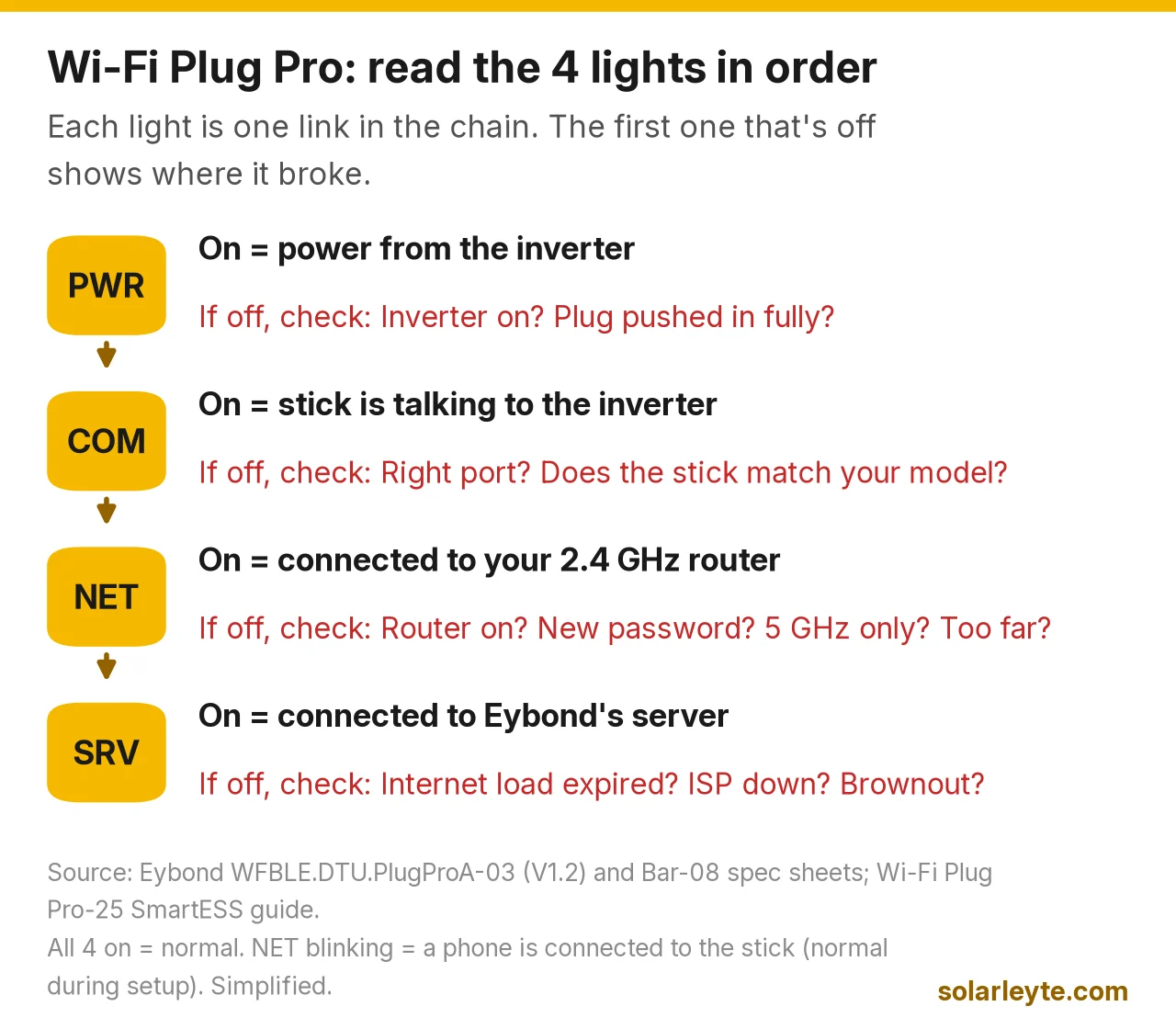
On the PlugProA-03 sheet, a blinking NET means a phone is connected to the stick over WiFi or Bluetooth, which is normal during setup. Read the lights left to right: the first one that's off tells you where the chain broke.
Why SmartESS says "offline", and what to do
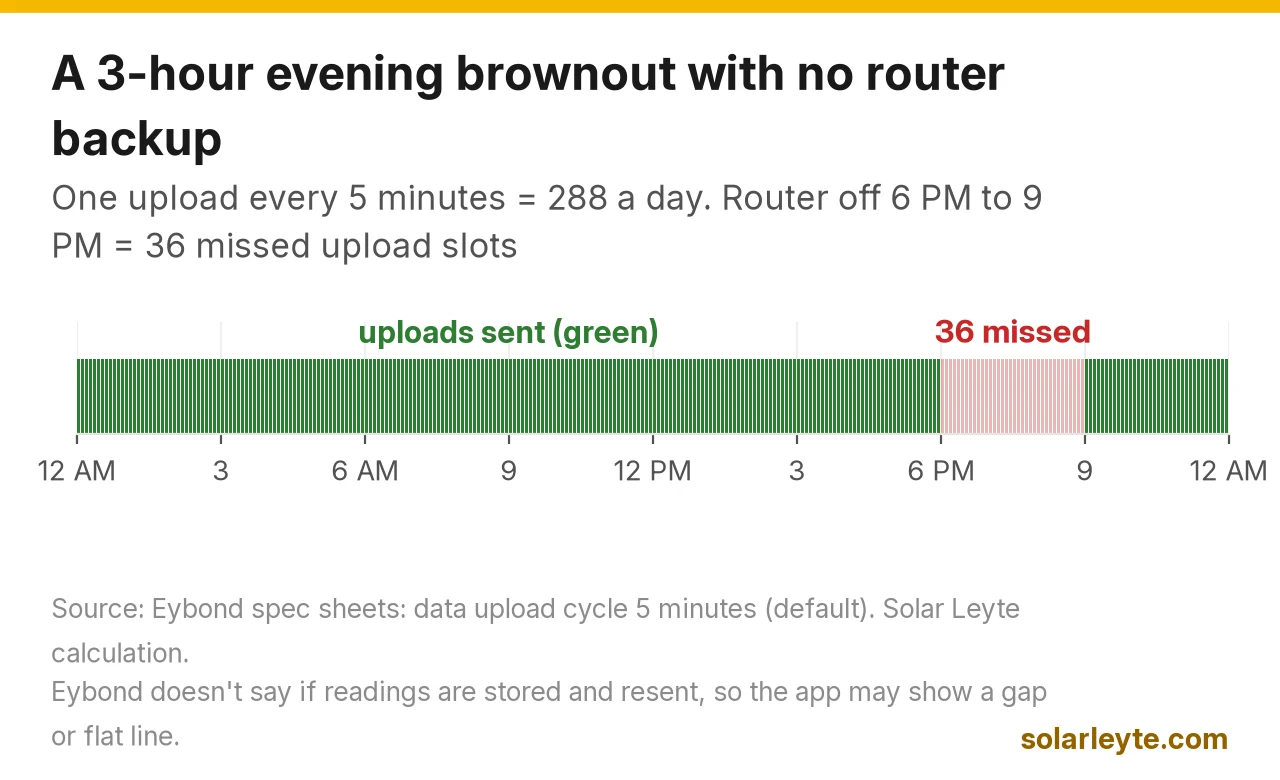
The dongle uploads a reading every 5 minutes by default (both Eybond spec sheets), so a new install can take a few minutes to show anything. After that, "offline" usually means one of these:
- You changed the router or its password. The dongle still remembers the old one. Redo step 3 to 5 above: join the dongle's WiFi, Wi-Fi Config → Network Setting, enter the new details.
- The router went to 5 GHz only, or a new ISP router has Smart Connect turned on. Split the bands.
- A brownout. Your hybrid inverter may keep the house running on battery, and the stick stays powered from the inverter. But if the router or the ISP's equipment is off, NET or SRV goes dark and the app freezes on old numbers.
- The daily restart. Eybond's sheets say the stick restarts itself after 24 hours of continuous running by default, so a short blip once a day is expected.
- The internet load ran out (prepaid pocket WiFi). PWR, COM and NET stay on, SRV goes off.
Worked example (Solar Leyte calculation): a 3-hour evening brownout. At one upload every 5 minutes, the stick sends 12 readings an hour, or 288 a day. If the router has no backup during a 6 PM to 9 PM brownout, that's 36 missed upload slots. Eybond's sheets don't say whether readings are stored and sent later, so you may see a gap or a flat line in that part of the graph. Your inverter's own screen still shows the real numbers.
If you want the app to keep working through brownouts, put the router on a small UPS or the inverter's backup circuit. Our UPS for WiFi and Starlink guide covers router watts and backup sizes.
The safe owner fixes, in order
- Look at the four lights and find the first one that's off.
- Restart the router, wait a few minutes, check again.
- Redo Wi-Fi Config → Network Setting from the dongle's own WiFi.
- Unplug and re-seat the dongle only if the inverter's manual says it's safe to do while running. If you're not sure, ask your installer.
- Still stuck? Eybond lists support@eybond.com on its Google Play page, or go back to the shop or installer that sold the inverter.
Never open the inverter to reach a port, and don't touch the battery or PV wiring to "reset" the dongle.
Passwords: the dongle vs your account
People mix up two different passwords:
- 12345678 is the initial password for the dongle's own WiFi (the one named after the PN). It's printed in the quick guides.
- Your SmartESS account password is the one you chose when you registered. The quick guides don't cover account recovery, so use the login screen's options or email Eybond support.
One privacy note: SmartESS's Google Play data-safety section says the app collects your email, phone number (optional) and location, and states "Data isn't encrypted: your data isn't transferred over a secure connection." So use a password you don't use anywhere else, especially not your email or bank password.
Can I change inverter settings from SmartESS?
Eybond says device parameters can be viewed and configured through the app, and the PlugProA-03 sheet adds remote configuration over the network. That means a wrong tap can change a battery or charging setting from your sofa. Treat the settings pages like the inverter's own menu: change only what you understand and what your battery's datasheet supports. Our charge controller settings guide explains the voltage numbers, and our MUST and Axpert error codes post helps when an alarm pops up. If an installer set up your system, ask them before changing anything.
Still choosing an inverter? Monitoring is one of the things to compare in our hybrid inverter price guide and our grid-tie vs hybrid guide.
FAQ
What is the SmartESS WiFi password?
The dongle's own WiFi (named after its PN) starts with 12345678, according to Eybond's quick guide. Your app login password is the one you set when registering.
Bakit offline ang SmartESS kahit may kuryente?
Usually it's the internet, not the inverter. Check the SRV light: if it's off but PWR, COM and NET are on, the router has no internet. If NET is off, the stick lost your WiFi: often a new password, 5 GHz, or the router is off.
Does SmartESS work with 5G WiFi?
If you mean 5 GHz WiFi, no. Eybond's spec sheets list 2.4 GHz (802.11 b/g/n) only. Use your router's 2.4 GHz network.
Can I use SmartESS on a PC?
Yes. Eybond lists the web version at www.dessmonitor.com. Log in with the same account.
Solar Leyte is run by MACC Systems & Energy Solutions Inc., a solar installer in Naval, Biliran.
Get a free solar quote from MACC
Planning a hybrid system and want monitoring you can actually read? Send us a photo of your latest BILECO or LEYECO bill, and we'll get back to you with a free, no-obligation written quote.
- Call/Text: 0955 723 5093
- Email: official@macc-inc.com
- Website: www.macc-inc.com
- Or use the site quote form: /quote
Sources (all checked 5 November 2026)
- Shenzhen Eybond, SmartESS product page: SmartESS for home energy storage; web version www.dessmonitor.com.
- Shenzhen Eybond, WFBLE.DTU.PlugProA-03 product specification V1.2 (PDF): PWR/COM/NET/SRV definitions incl. NET blinking when a phone is connected; 2.412–2.484 GHz, 802.11 b/g/n, WEP/WPA/WPA2; 100 m open area; 5-minute default upload; restart after 24 h; one phone connection; parameters viewable and configurable on site with the app and remotely.
- Shenzhen Eybond, WFBLE.DTU.Bar-08 product specification (PDF): LED definitions; 2.4 GHz, 802.11 b/g/n, WEP/WPA/WPA2; 30 m open area; 5-minute default upload; 1 client in AP mode; restart every 24 h; supports SmartClient/SmartESS/SmartValue; app can view and adjust device parameters.
- Shenzhen Eybond, DTU PlugPro series page: plug-and-play, powered from the device, 4 LED indicators.
- Wi-Fi Plug Pro-25 quick installation guideline, SmartESS version, supplied for MUST inverters (PDF, hosted by Ineldec): setup steps, PN-named WiFi, initial password 12345678, Wi-Fi Config → Network Setting, register, add datalogger, 4 LEDs on = normal.
- Guangzhou Anern Energy Technology, Wi-Fi Plug Pro quick installation guideline – SmartESS (PDF).
- PowMr, Solar inverter WiFi module pairing guide: module-to-app table (Solarman Business, Solar of Things, Sun Wise); 2.4 GHz only, split Smart Connect, letters and numbers only, WPA/WPA2-PSK, DHCP on and AP isolation off, 2 to 3 bars.
- Google Play, SmartESS listing: Shenzhen Eybond; 500K+ downloads; 2.0 stars, 5.48K reviews; updated 28 Oct 2026; SmartClient for PV inverters; developer email support@eybond.com. Data safety: data collected incl. email, phone number (optional), location; "Data isn't encrypted".
- Apple App Store Philippines, SmartESS listing: free; version 3.56.0; requires iOS 13.0 or later; copyright Shenzhen Eybond Co., Ltd.
- Solar Leyte calculation (labelled in the text): 60 ÷ 5 = 12 uploads an hour, 288 a day; 3 hours × 12 = 36 missed upload slots.