If ShinePhone says your Growatt inverter is offline, the problem is almost always the Wi-Fi stick (the ShineWiFi-X datalogger) or your router, not the inverter. Look at the light on the stick first. Flashing blue means it's working. Solid green means it can't join your Wi-Fi, usually because the network is 5 GHz or the name or password has symbols in it. Flashing green means it joined the router but the router has no internet. No light at all means the stick has no power, which is normal on a grid-tie inverter at night or during a brownout.
This guide covers the first-time setup, the light colours, the Wi-Fi rules, the "offline" fixes in a safe order, and the three different passwords people mix up. Everything comes from Growatt's own manuals and help pages, linked at the bottom.
Last checked: 13 November 2026.
What ShinePhone and the ShineWiFi-X actually do
ShinePhone is Growatt's free monitoring app for Android and iPhone. The inverter doesn't talk to your phone directly. A small datalogger plugged into the inverter reads it and uploads the data to Growatt's ShineServer, and the app reads it from there.
Growatt's ShineWiFi-X manual lists the main specs:
ShineWiFi-X spec | What Growatt says | What it means for you |
|---|---|---|
Power | 5 V, 1 A, only from the USB port of a Growatt inverter | If the inverter is off, the stick is off too |
Wi-Fi | 802.11 b/g/n, 2.4 GHz only | It can't see a 5 GHz network |
Upload interval | Every 5 minutes | The app lags real life by up to 5 minutes |
Router ports | 5279 and 5280 must not be blocked | A strict firewall can stop the upload |
Rating | IP65, −20 °C to +65 °C | Fine outdoors next to the inverter |
Growatt's older installation guide splits the sticks by port: the ShineWiFi-X fits inverters with a USB port, and the ShineWiFi-S fits inverters with an RS232 port. Both use the same app and the same light colours. If you have a Growatt inverter and want to compare it with other brands first, our LuxPower vs Growatt vs Deye comparison covers the hardware.
How to set up ShinePhone (first time)
Growatt's ShineWiFi-X quick guide and configuration guide describe the same steps:
- Check the light. With the stick plugged in and the inverter on, the light should flash red. That means the stick is talking to the inverter.
- Connect your phone to the 2.4 GHz Wi-Fi the stick will use. Stand near the inverter and check the signal there.
- Install ShinePhone from Google Play or the App Store and tap Register. Use your own email address as the username.
- Installer code: Growatt's help page says you can leave it blank. If your installer gave you a code, enter it so they can see your system and help remotely.
- Add your plant: name, installation date, address and time zone, plus the inverter's rated power in kW.
- Add the datalogger: scan the QR code on the stick, or type its serial number and check code. Use the stick's serial, not the inverter's. They're different.
- Enter your Wi-Fi password and tap configure. Growatt's app manual says it usually succeeds in about 30 seconds.
- Wait for flashing blue. Then give it about 10 minutes before the inverter shows up in the app.
If step 7 fails, Growatt has a backup "hotspot" method. Press the button on the stick once until the light is solid blue. Connect your phone to the Wi-Fi network named after the stick's serial number (password 12345678) and finish the setup from there. Newer sticks (serial numbers in Growatt's 5B/6B series) finish this inside the app. Others can also use a web page at 192.168.10.100 (username admin, password 12345678).
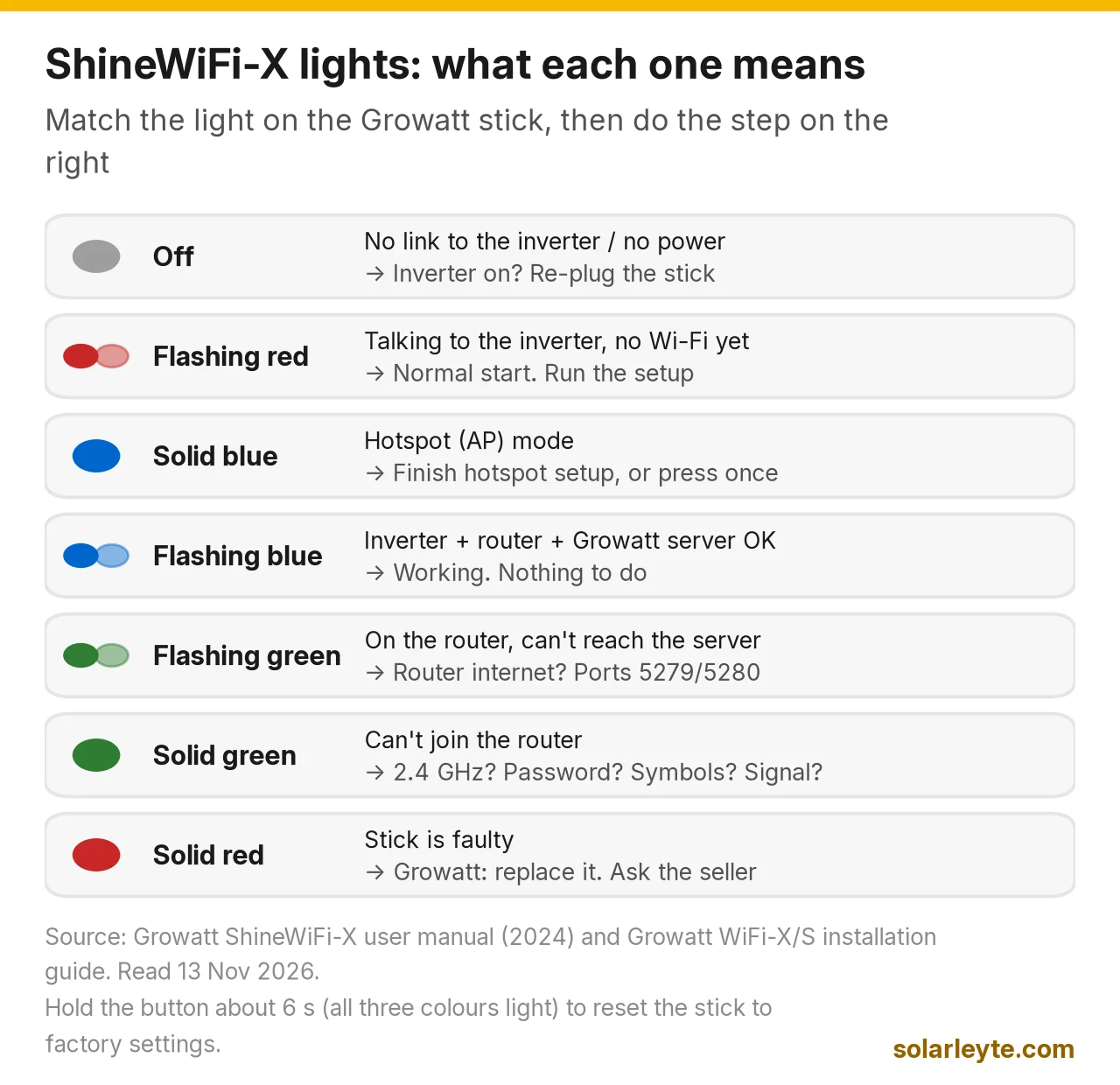
What the light on the ShineWiFi-X means
Light | What Growatt says it means | What to do |
|---|---|---|
Off | No connection to the inverter (or no power) | Is the inverter on? If yes, unplug the stick and plug it back in |
Flashing red | Talking to the inverter, Wi-Fi not set up yet | Normal starting point. Run the setup |
Solid blue | Hotspot (AP) mode | Finish the hotspot setup, or press the button once to exit |
Flashing blue | Connected to inverter, router and Growatt's server | Working. Nothing to do |
Flashing green | Joined the router, but can't reach Growatt's server | Check the router has internet. Check ports 5279/5280 aren't blocked |
Solid green | Can't join the router | Wrong password, a 5 GHz-only or mixed network, weak signal, or symbols in the name |
Solid red | The stick is faulty | Growatt says replace it. Talk to your seller |
Holding the button for about 6 seconds, until all three colours light up, resets the stick to factory settings. Growatt says to do that when you change your router or its password, and then set it up again.
The Wi-Fi rules that catch most homes
Growatt's help centre is strict about the network:
- 2.4 GHz only. Growatt says the stick doesn't work on 5 GHz or on a combined 2.4/5 GHz network that uses one name. If your router shows a name ending in "5G", use the other one.
- Letters and numbers only in the Wi-Fi name and password. No spaces, hyphens, underscores or symbols.
- 13 characters or fewer for both. Both are case-sensitive.
- No captive-portal Wi-Fi (the kind that asks you to log in on a web page), and no bridge networks.
If you're on Starlink, its app has a Split 2.4/5 GHz networks switch under your network name. Turning it on gives you a separate 2.4 GHz network for the stick. Your Wi-Fi drops for a moment while it restarts.
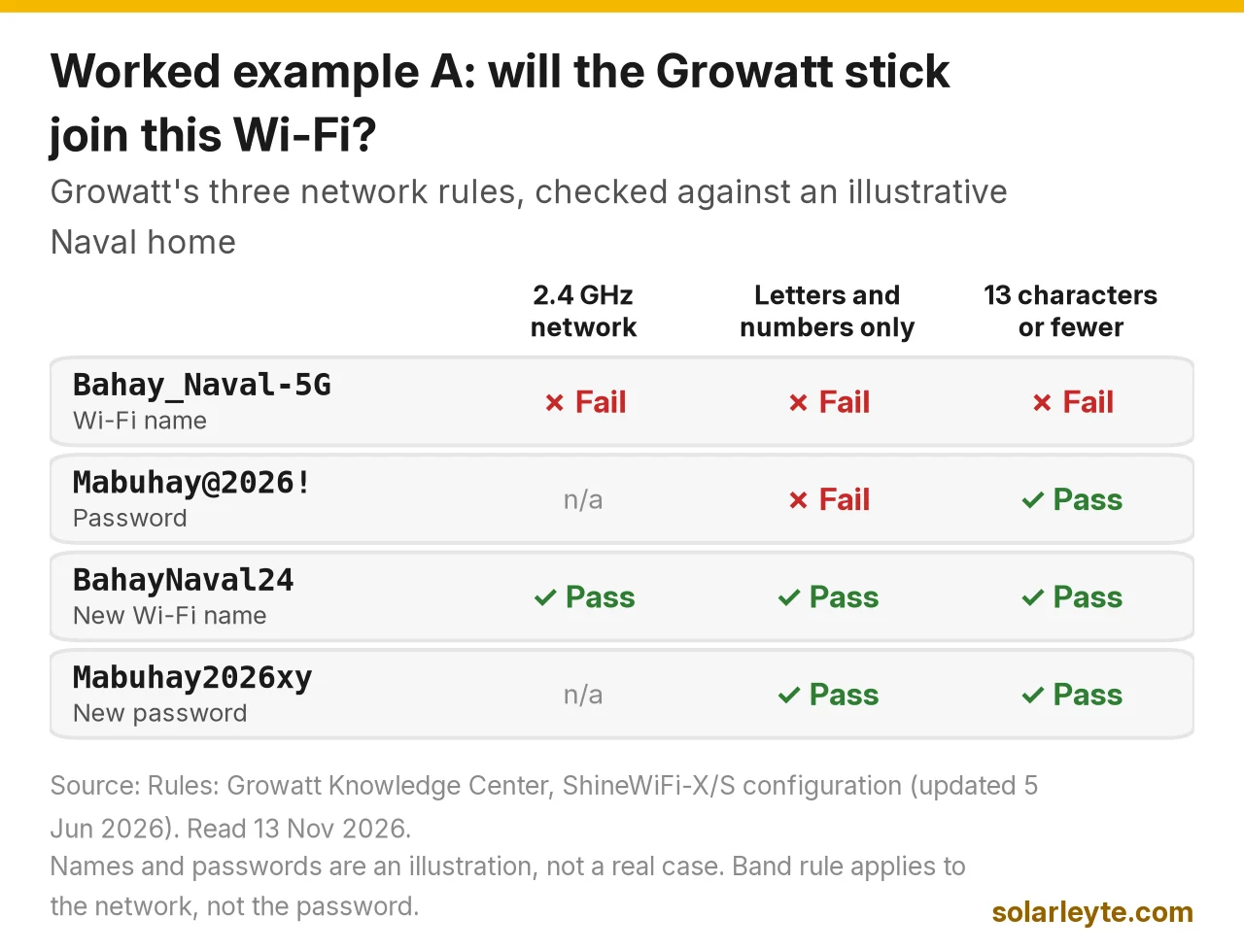
Worked example A: a Wi-Fi name that fails
Illustration, not a real case. A family in Naval has a fibre router showing "Bahay_Naval-5G" with the password "Mabuhay@2026!".
- "Bahay_Naval-5G" is 14 characters, has an underscore and a hyphen, and is the 5 GHz network. That's four strikes.
- "Mabuhay@2026!" is 13 characters, which is fine, but it has two symbols.
The fix is to make a 2.4 GHz network called "BahayNaval24" (12 characters) with a password like "Mabuhay2026xy" (13 characters, letters and numbers only), then hold the stick's button for 6 seconds and set it up again.
Why ShinePhone says "offline", and what to do
Most "offline" cases fall into four groups.
1. A brownout or nightfall. The ShineWiFi-X only gets power from the inverter's USB port. A grid-tie inverter shuts down during a brownout (that's the safety rule explained in our grid-tie vs hybrid guide), and it stops working once the panels stop producing after sunset. Either way the stick goes dark, so the app shows offline. Your router also needs power. If it isn't on a UPS, nothing uploads until the power comes back. Our WiFi and Starlink brownout backup guide covers keeping the router alive.
2. The router changed. A new router, a new Wi-Fi name, a new password, or an ISP technician who reset the box. The stick still has the old details, so it shows solid green. Reset the stick and set it up again.
3. The router has no internet. That's flashing green. Check that other devices can browse. If they can, ask your ISP whether ports 5279 and 5280 are open.
4. The stick is fine but the inverter is missing. Growatt's app manual says it can take a while for the inverter to show up after the stick connects. If it's still offline after 10 minutes, restart the stick by unplugging it and plugging it back in.
The safe owner fixes, in order
- Look at the stick's light and match it to the table above.
- Check that the inverter's screen is on. If the whole inverter is dead, see solar inverter not turning on before you touch the stick.
- Check the router has power and internet.
- Unplug the stick, wait a few seconds, and plug it back in. Twist it until it locks.
- If the router changed, hold the button for 6 seconds and run the setup again.
- Still solid red or no light with the inverter on? Call your installer or seller.
Never open the inverter or touch the PV or battery cables to fix the app. The stick plugs into the outside of the inverter, and that's as far as an owner needs to go.
Worked example B: how much the stick uploads
Our arithmetic from Growatt's 5-minute interval. 24 hours × 60 minutes ÷ 5 = 288 uploads a day. If you lose eight hours to a brownout, that's 96 missing readings. Growatt's manual says the stick saves data locally and re-sends after a break, but don't panic if a brownout day looks odd in the graph.
The three passwords people mix up
Password | What it's for | Where it comes from |
|---|---|---|
Your ShinePhone account password | Logging in to the app | You set it at registration. Use "Forgot password" on the login screen to get a reset by email |
Stick hotspot / web page | Only during hotspot setup | 12345678 (web page user: admin), per Growatt |
Device control password | Changing inverter settings in the app | "growatt" plus today's date, e.g. growatt20261113 on 13 November 2026 |
Worked example C: the device control password
Growatt's ShinePhone manual says the password for the inverter's control page is "growatt + current date". Growatt material and seller guides write it as year, month, day. So on 13 November 2026 it's growatt20261113, and on 1 December 2026 it's growatt20261201.
Be careful on that page. It changes how the inverter works, like grid voltage limits, power limits and charge times. A wrong grid setting can make the inverter trip or break your co-op's connection rules. If you didn't set the system up yourself, ask your installer before changing anything.
If ShinePhone shows a fault code rather than "offline", our Growatt inverter error codes list explains what each one means. Using another brand? See our SmartESS app guide or Solarman app guide.
FAQ
Can I use ShinePhone on a PC?
ShinePhone itself is a phone app. On a computer, log in at server.growatt.com with the same username and password. Growatt's manual names it as the monitoring website.
Bakit offline ang ShinePhone kahit may kuryente?
Tingnan ang ilaw sa ShineWiFi-X. Kung solid green, hindi ito makakonekta sa WiFi mo. Kadalasan dahil 5G ang network, may simbolo ang pangalan o password, o pinalitan ang router. Kung flashing green, walang internet ang router. Kung flashing blue, maghintay ng mga 10 minuto bago lumabas ang inverter sa app.
Does ShinePhone work with 5G Wi-Fi?
No. The ShineWiFi-X only works on 2.4 GHz. Growatt says it won't work on a 5 GHz network or a combined network that uses one name for both bands.
What is the ShinePhone installer code?
It's a code that links your account to your installer so they can help remotely. Growatt's help page says you can leave it blank when you register.
"Datalogger already exists": what now?
Growatt says the stick is already added to another plant or another account. Check your own plant list first. If it's under someone else's account (often the installer's or a previous owner's), ask them to delete it, or contact Growatt with the stick's serial number.
Solar Leyte is run by MACC Systems & Energy Solutions Inc., a solar installer in Naval, Biliran.
Get a free solar quote from MACC
Want a hybrid system that stays online through a brownout, or planning an upgrade? Send us a recent BILECO or LEYECO bill and we'll get back to you with a free, no-obligation written quote.
- Call/Text: 0955 723 5093
- Email: official@macc-inc.com
- Website: www.macc-inc.com
- Or use the site quote form: /quote
Related guides
- Grid-tie vs hybrid vs off-grid solar: which works in a brownout?
- Growatt inverter error codes
- LuxPower vs Growatt vs Deye hybrid inverters
- SmartESS app setup and "offline" fixes
- Solarman app for Deye inverters
Sources (all checked 13 November 2026)
- Growatt ShineWiFi-X user manual, 2024 (PDF): USB-only power, 5 V / 1 A, 2.4 GHz 802.11 b/g/n, 5-minute upload interval, IP65, −20 °C to +65 °C, LED status and troubleshooting table (ports 5279/5280, solid red = replace), button: one press for AP mode, hold 6 s for factory reset, local saving and re-sending after a break.
- Growatt ShineWiFi-X quick installation guideline (PDF): red flashing = talking to the inverter; register, add datalogger by serial and check code; reset to factory settings (hold the key 6 s until all three LEDs light) after a router or password change, then reconfigure.
- Growatt Knowledge Center: Installation & Configuration Instructions for ShineWiFi-X / ShineWiFi-S (updated 5 June 2026): 2.4 GHz only, not 5 GHz or mixed networks; hotspot method for 5B/6B-series sticks inside the app; letters and numbers only; 13 characters or fewer; hotspot password 12345678; web page 192.168.10.100, admin / 12345678.
- Growatt Service Center: Datalogger WiFi-X / WiFi-S installation guide (PDF): USB vs RS232 sticks, light colour meanings (solid green: not 2.4 GHz, wrong password, weak signal; flashing green: no internet), registration fields, datalogger serial vs inverter serial, reconfiguring an existing datalogger.
- Growatt ShinePhone user manual (app version 5.8 and above), distributor copy (PDF): installer code optional, toolbox setup in about 30 seconds, device control password "growatt + current date", forgot-password by email, server.growatt.com, common problems (inverter offline after 10 minutes, datalogger already exists, check code).
- Midsummer Energy: ShinePhone app battery control instruction (PDF): password written as growatt + year + month + day.
- ShinePhone on Google Play.
- Evnex: Connecting your charger to Starlink WiFi: Starlink's Split 2.4/5 GHz networks setting and the brief Wi-Fi restart.
- Worked examples A–C are Solar Leyte illustrations built from the figures above, not real cases. The 288 uploads a day (24 × 60 ÷ 5) and 96 missed readings (8 × 60 ÷ 5) are our calculations.