If FusionSolar says your Huawei inverter is offline, check the inverter's own lights before anything else. If the two running lights are steady green, the inverter is still making power and only the internet link is down. That's usually your router: a new modem, a changed Wi-Fi password, a 5 GHz-only network, or no power to the router after a brownout. If you have a Smart Dongle, its light tells you exactly which step failed: slow green blinking means it's still connecting to the router, fast red means it can't join the router, slow red means it joined the router but can't reach Huawei's server, and fast green means everything is working.
Below: the light meanings, Wi-Fi rules, safe fixes, router reconnect steps, and the one case where an offline dongle costs you power. Everything comes from Huawei's own manuals, linked at the bottom.
Last checked: 17 November 2026.
How a Huawei inverter talks to the FusionSolar app
FusionSolar is Huawei's monitoring app (Android and iPhone) and website. Your phone doesn't read the inverter directly when you're away from home. The inverter sends its data through your router to Huawei's FusionSolar server, and the app reads it from there. Huawei's manuals name the web version as intl.fusionsolar.huawei.com, which is also the answer to "FusionSolar for PC": log in there with the same account.
There are two ways a home Huawei inverter gets online:
Connection | What it is | Common in |
|---|---|---|
Built-in WLAN | The inverter has Wi-Fi inside (Huawei lists "WLAN: Supported" for the SUN2000-(2KTL-6KTL)-L1) and joins your router directly | Single-phase L1 home inverters |
Smart Dongle, WLAN-FE (SDongleA-05) | A stick in the inverter's USB / dongle port that joins your router by Wi-Fi or by network cable (FE) | Inverters without Wi-Fi, or where a cable or a more stable link is wanted |
Smart Dongle, 4G (SDongleA-03) | The same idea, but it uses a SIM card instead of your Wi-Fi | Sites with no home internet |
If your inverter has built-in WLAN and also has a dongle, Huawei says the dongle's own Wi-Fi hotspot is off by default. You can wake it from the app under the plant's Devices > SDongleA-05 > O&M Authorization > WLAN wakeup.
Not sure which Huawei you have? Our Huawei solar price guide lists the SUN2000 and LUNA2000 models sold in the Philippines.
First: is it the app, or the inverter?
"Offline" in the app only means Huawei's server stopped hearing from your system. Your panels may still be working fine. On the SUN2000-L1, Huawei's manual describes the lights like this:
Inverter light | What Huawei says it means | What it tells you |
|---|---|---|
LED1 and LED2 steady green | Operating in grid-tied mode | Making power. Only the data link is down |
LED1 blinking green slowly, LED2 off | DC (panels) on, AC (grid) off | Inverter isn't connected to the grid. Brownout, or the AC breaker is off |
Both blinking green slowly | DC and AC on, not exporting yet | Starting up, or waiting for conditions |
Both off | DC and AC both off | No sun and no grid, or switches off |
Steady orange | Operating off-grid (backup) | Running on battery during a brownout, if your system has one |
Blinking red | DC or AC "environmental" alarm (for example low insulation resistance) | A real alarm. Read it in the app or call your installer |
LED3 blinking green fast | Communication in progress | Data is flowing |
LED3 off | No communication | The inverter isn't talking to anything |
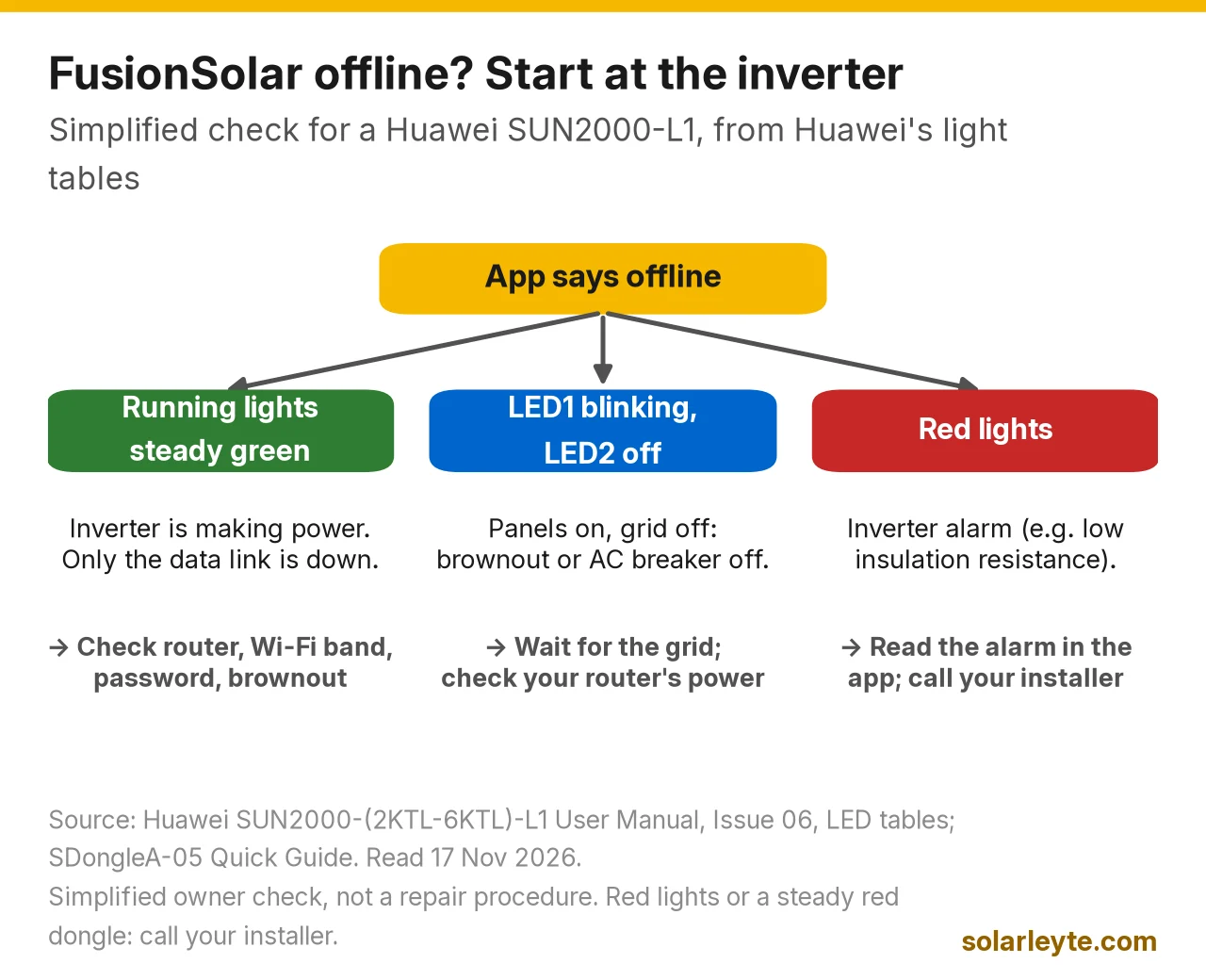
If LED1 and LED2 are steady green, stop worrying about your power and start looking at your Wi-Fi. If they show red, that's an inverter alarm, not a Wi-Fi problem.
What the Smart Dongle light means
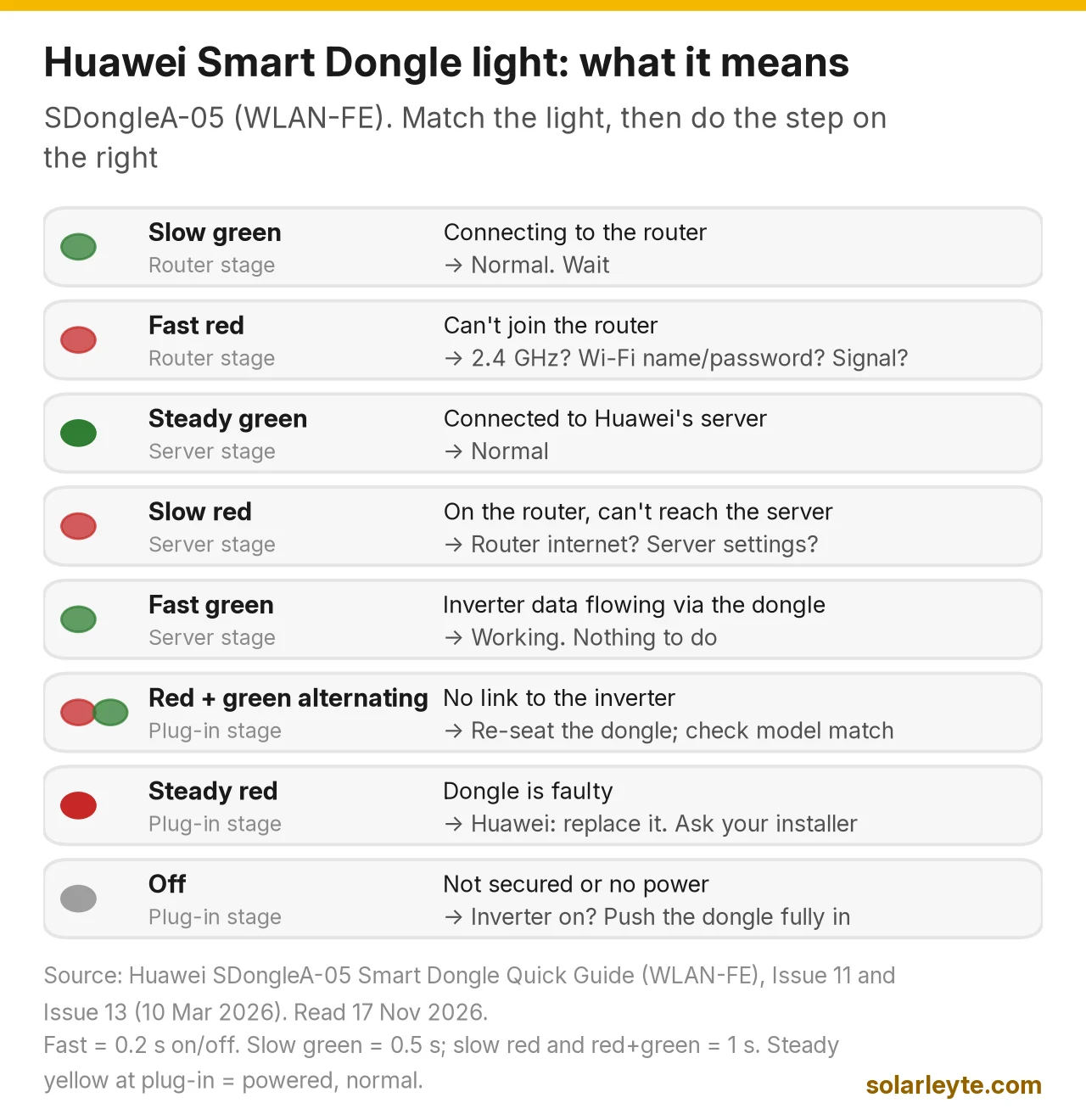
The SDongleA-05 has one light. Huawei's quick guide splits its meanings into three stages: plugging it in, joining the router, and reaching the management system (Huawei's server).
Dongle light | Stage | What Huawei says | What to do |
|---|---|---|---|
Off | Plugging in | Not secured or no power | Check the inverter is on. Push the dongle fully in and tighten it |
Steady yellow (green and red together) | Plugging in | Secured and powered | Normal |
Red, fast blink (0.2 s) | Plugging in | Router settings not set yet | Do the setup in the app |
Steady red | Plugging in | Dongle is faulty | Huawei says replace the dongle. Ask your seller or installer |
Red and green alternating, slow (1 s) | Plugging in | No communication with the inverter | Re-seat the dongle. Check it matches your inverter model |
Green, slow blink (0.5 s) | Router | Connecting to the router | Wait |
Red, fast blink (0.2 s) | Router | Failed to connect to the router | Wrong Wi-Fi name or password, 5 GHz network, or weak signal |
Steady green | Server | Connected to the management system | Normal |
Red, slow blink (1 s) | Server | Failed to connect to the management system | Router has no internet, or the server settings are wrong |
Green, fast blink (0.2 s) | Server | Inverter is talking to the server through the dongle | Working. Nothing to do |
Notice that fast red appears twice. Before the dongle has any router settings it means "not set up yet". After setup it means "can't join the router". Either way, the fix is in the app.
The Wi-Fi rules Huawei sets
Most "offline" cases in Philippine homes come down to the router. Huawei's L1 manual and the dongle quick guide say:
- 2.4 GHz only. The router must support IEEE 802.11 b/g/n at 2.4 GHz, and the signal has to reach the inverter. The dongle's radio is listed as 2.412 to 2.484 GHz. A 5 GHz network won't work.
- Normal home security only. WPA, WPA2 or WPA/WPA2 is recommended. Huawei says enterprise-level encryption isn't supported, which includes hotspots where you log in on a web page first. WEP and WPA TKIP aren't recommended.
- Signal at the inverter, not at your sala. If your phone shows one bar of Wi-Fi next to the inverter, the inverter's link will be weak too.
- Stand close when you set it up. For a phone connecting directly to an L1 inverter's own Wi-Fi, Huawei says keep within 3 m with no obstructions when using the built-in antenna.
If your router uses one name for both 2.4 GHz and 5 GHz, split them in the router settings (or ask your ISP) so you can pick the 2.4 GHz one for the inverter.
Worked example A: why the dongle blinks fast red
Example with assumptions, not a real case. A Naval homeowner gets a new fibre modem. The installer had connected the dongle to the old network, "Bahay2.4G". The new modem only shows one combined network name, "Bahay_Fiber", and the old network no longer exists.
- The inverter's running lights are steady green, so it's still producing power.
- The dongle light blinks red fast. In the router stage, Huawei says that means it failed to connect to the router. That makes sense: the network it remembers is gone.
- The fix: in the modem settings, turn on a separate 2.4 GHz network (for example "Bahay_Fiber_2G" with a WPA2 password), then put that network's name and password into the dongle through the app (steps below).
- The light should go to slow green (connecting), then steady green, then fast green. Once it's blinking fast green, data is flowing again.
The power made while the app was offline wasn't lost; only the graphs have a gap.
Offline fixes, in a safe order
Do these in order and stop when it comes back.
- Look at the inverter lights. Steady green running lights mean power is fine. Red means an alarm, so read it in the app or call your installer before touching anything else.
- Check the time. If it's night or there's a brownout, the router may simply be off. If your router isn't on a UPS, nothing uploads until power returns. Our Wi-Fi and Starlink brownout backup guide covers keeping it alive.
- Check your internet. Is your phone online on the same Wi-Fi? If the dongle shows slow red (can't reach the server) and the internet is down, the problem is your ISP, not the inverter.
- Ask "what changed?" A new modem, new ISP, new Wi-Fi password or a router reset are the usual causes. If something changed, go straight to the reconnect steps below.
- Re-seat the dongle. If the light is off or alternating red and green, Huawei's guide says remove and re-insert it, then check it matches the inverter.
- Give it time. After you fix the router, watch the light go from slow green to fast green before checking the app.
- Call your installer if the dongle light is steady red (Huawei: replace it), if the inverter shows red lights, or if you can't log in as installer. Leave the AC and DC switches alone unless your installer tells you otherwise.
How to reconnect after changing your router
Huawei's L1 manual puts the router settings under Device Commissioning > Settings > Communication configuration > Router connection settings in the FusionSolar app. The steps, in plain words:
- Stand near the inverter with your phone and the new Wi-Fi name and password.
- In FusionSolar, open Device Commissioning and connect to the inverter's own Wi-Fi (named after the inverter's serial number). You can usually scan the QR code on the side label.
- The Wi-Fi password is on the inverter's side label. Huawei's app quick guide gives Changeme as the initial inverter and dongle Wi-Fi password, and 00000a as the initial installer password, but your installer should have changed both at setup. On newer firmware the L1 manual says there's no initial login password, and you set one the first time you log in.
- Log in as installer and open Router connection settings. Pick your 2.4 GHz network and enter its password.
- Check Management System Configuration is still set to Huawei's server (Huawei's guides name the domain intl.fusionsolar.huawei.com). If you didn't change it, leave it.
- Reconnect your phone to your home Wi-Fi and open the app normally. The plant should show online again once the dongle or inverter reaches the server.
Our advice: if you don't have the installer password, ask your installer to do it remotely or on a visit. The installer screen also holds grid and export settings, and changing those by accident can stop your inverter exporting or break your co-op's connection rules. Don't use a password-reset procedure unless your installer agrees.
If you still can't see the inverter's Wi-Fi at all, note that Huawei's commissioning guides for some devices set the local Wi-Fi to "OFF when idle", which turns it off after 4 hours. Your installer will know how to wake it on your model.
When an offline dongle can cut your solar output
This is the one case where "offline" costs you money. Some systems are set up for zero export or export limiting (anti-backfeeding), using a power meter that talks to the inverter through the Smart Dongle. Huawei's L1 manual lists a setting called Communication disconnection fail-safe. If it's enabled and the link between the inverter and the dongle is lost for longer than the set detection time, the inverter derates to the "active power output limit for fail-safe" percentage.
Note what this is: it's the link between the inverter and the dongle, not your internet. A dead modem won't trigger it. A loose or faulty dongle (alternating red and green, or steady red) can. If that fail-safe limit is set low, the inverter will cut its output until the dongle is fixed.
Worked example B: what a lost dongle link can cost
Example with assumptions, not a real case. A Biliran home on BILECO has a zero-export setup and the fail-safe limit set to 0%. A loose dongle drops the link on a sunny morning while the inverter was producing 3.5 kW, and it stays down for 2 hours.
- Solar not produced: 3.5 kW × 2 h = 7 kWh
- If the house still used that power from the grid at BILECO's October 2026 residential rate of ₱19.3628 per kWh: 7 × ₱19.3628 = about ₱135.54
If it happens for days unnoticed, it adds up. On an export-limited system, check the dongle light whenever the app goes offline. Plug your own usage into our electricity calculator to see what a lost day of solar is worth to you.
Battery shows offline, inverter doesn't
If FusionSolar shows the inverter online but a LUNA2000 battery offline or missing, the problem is between the battery and the inverter, not your Wi-Fi. Huawei's LUNA2000-(5-30)-S0 manual lists these battery running lights:
LUNA2000 light | Meaning |
|---|---|
Steady green | Operating |
Blinking green slowly | Standby |
Off | Hibernation |
Blinking red fast | Environment alarm (power module or battery module) |
Steady red | Fault |
The battery has its own DC switch, which Huawei says must be on before the inverter powers up. Beyond checking that, this is an installer job: battery cabling and battery settings aren't owner fixes. If you're deciding on a battery in the first place, our grid-tie vs hybrid guide explains what it does in a brownout.
FAQ
Can I use FusionSolar on a computer?
Yes. Huawei's manuals name the FusionSolar web portal as intl.fusionsolar.huawei.com. Log in there with the same username and password as the app.
Bakit offline ang FusionSolar kahit may araw?
Tingnan muna ang ilaw ng inverter. Kung steady green ang dalawang running light, gumagana ang inverter at internet lang ang problema. Kadalasan, bagong router o bagong WiFi password, 5G lang ang network, o walang kuryente ang router dahil sa brownout. Kung may Smart Dongle, ang mabilis na pulang kislap ay nangangahulugang hindi ito makakonekta sa router.
Does FusionSolar work with 5 GHz Wi-Fi?
No. Huawei says the router must support 2.4 GHz 802.11 b/g/n. Split your router's bands if it uses one name for both, and connect the inverter or dongle to the 2.4 GHz network.
Am I losing power while the app is offline?
Usually not. If the inverter's running lights are steady green, it's still producing and exporting. You only lose the graphs. The exception is a zero-export system with the communication fail-safe enabled, where a lost link between the inverter and the dongle can make the inverter cut output (see worked example B).
What is the default FusionSolar installer password?
Huawei's app quick guide gives 00000a as the initial installer password and Changeme as the initial inverter Wi-Fi password, but both should have been changed at installation, and newer L1 firmware asks you to set a password on first login. Ask your installer rather than guessing. Huawei warns that if a password is lost, devices can't be accessed.
Solar Leyte is run by MACC Systems & Energy Solutions Inc., a solar installer in Naval, Biliran.
Get a free solar quote from MACC
Planning a new system or an upgrade with monitoring that stays online? Send us a recent BILECO or LEYECO bill and we'll get back to you with a free, no-obligation written quote.
- Call/Text: 0955 723 5093
- Email: official@macc-inc.com
- Website: www.macc-inc.com
- Or use the site quote form: /quote
Related guides
- Grid-tie vs hybrid vs off-grid solar: which works in a brownout?
- Huawei solar price in the Philippines
- ShinePhone app (Growatt) setup and offline fixes
- Solarman app for Deye inverters
- SmartESS app setup and "offline" fixes
- Sungrow inverter error codes
Sources (all checked 17 November 2026)
- Huawei, SDongleA-05 Smart Dongle Quick Guide (WLAN-FE), Issue 11 (PDF), and the current Issue 13 (10 March 2026) on Huawei Support: LED meanings in the install, router and management-system stages; WLAN wakeup path; dongle WLAN off by default on inverters with built-in WLAN; 2.412–2.484 GHz 802.11b/g/n; no password, WPA, WPA2, WPA/WPA2; up to 10 devices over RS485; IP65; 2.5 W; −30 °C to +65 °C.
- Huawei, SUN2000-(2KTL-6KTL)-L1 User Manual, Issue 06 (2022-03-10) (PDF): LED1/LED2/LED3 meanings; WLAN supported; WLAN-FE and 4G Smart Dongle options (SDongleA-05, SDongleA-03); router must support 2.4 GHz 802.11 b/g/n, WPA/WPA2 recommended, no enterprise encryption; phone within 3 m with the built-in antenna; Wi-Fi password on the side label; no initial login password on first access; Device Commissioning > Settings > Communication configuration > Router connection settings / Management System Configuration; intl.fusionsolar.huawei.com; Communication disconnection fail-safe and active power output limit for fail-safe.
- Huawei, SUN2000-KTL-L1 FusionSolar App Quick Guide, Issue 08 (distributor copy, PDF): initial inverter and WLAN module password Changeme; initial installer password 00000a; change them after first login; owner account set up by the installer; intl.fusionsolar.huawei.com.
- Huawei, FusionSolar App Quick Guide on Huawei Support: router, FE, 4G and management-system (intl.fusionsolar.huawei.com) settings.
- Huawei, FusionSolar App and SUN2000 App Device Commissioning Guide (ESS): O&M via WLAN connection: "OFF when idle" default, WLAN disabled after 4 hours (applies to the devices that guide covers).
- Huawei, LUNA2000-(5-30)-S0 User Manual, Issue 01 (distributor copy, PDF): battery running and battery-level light meanings; turn on the battery DC switch before the inverter.
- BILECO, October 2026 power rate post: residential ₱19.3628 per kWh, used in worked example B.
- Worked examples A and B are Solar Leyte illustrations built from the figures above, not real cases. 3.5 kW × 2 h = 7 kWh and 7 × ₱19.3628 = ₱135.54 are our calculations.