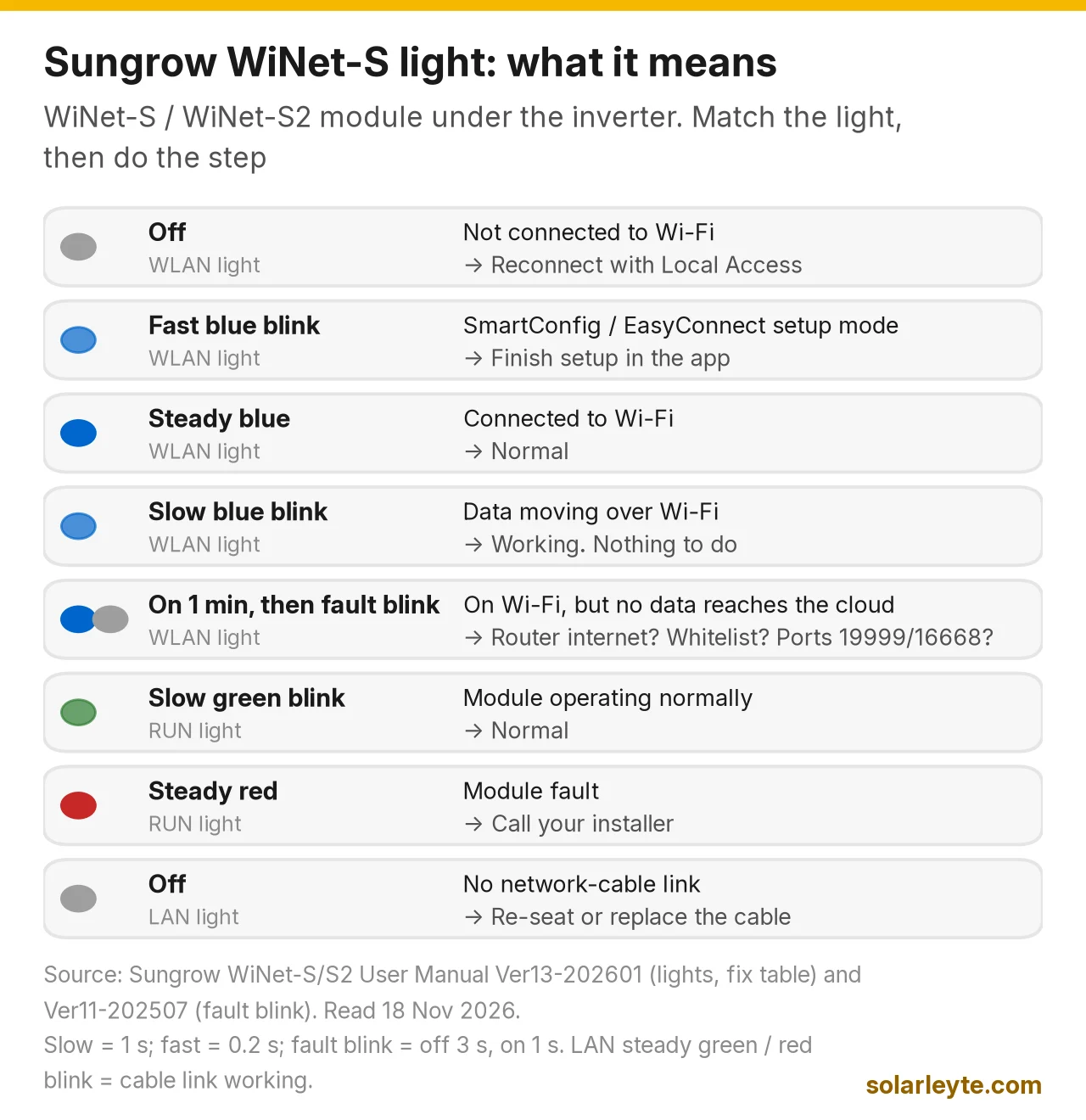
If iSolarCloud says your Sungrow is offline, your solar is usually still working. Only the data link is down. On a Sungrow, the link to the app runs through a small WiNet-S or WiNet-S2 module plugged into the bottom of the inverter. Its WLAN light tells you which step failed: off means it isn't on your Wi-Fi at all, fast blue blinking means it's waiting in setup mode, steady blue means it's on your Wi-Fi, and a light that is on for a minute and then fault-blinks (off 3 seconds, on 1 second) means it joined the router but can't reach Sungrow's server. Most Leyte and Biliran cases come down to a new modem, a changed Wi-Fi password, a 5 GHz-only network, or a router with no power after a brownout.
Below: the light meanings, Sungrow's own fix table, the login server to pick in the Philippines, router reconnect steps, and the tariff setting most owners never touch. Everything comes from Sungrow's manuals, linked at the bottom.
Last checked: 18 November 2026.
How a Sungrow inverter talks to iSolarCloud
iSolarCloud is Sungrow's monitoring app (Android and iPhone) and website. When you're away from home, your phone doesn't talk to the inverter directly. Sungrow's WiNet-S/S2 manual describes the path like this: the inverter connects through the WiNet module, by Wi-Fi or by network cable, to your router, and uploads its data to the iSolarCloud server. The app then reads it from there.
The same module also has its own Wi-Fi hotspot (its name starts with "SG"). Sungrow calls using it local access: your phone connects straight to the module, with no internet needed, to see live data or change settings. That's the route you use to fix a broken Wi-Fi link.
Module | Works with (from Sungrow's compatibility table) | Notes |
|---|---|---|
WiNet-S | SG2.0–3.0RS-S and SG3.0–10RS grid-tie, SH3.0–6.0RS hybrids, SH5.0–10RT three-phase hybrids | The older module |
WiNet-S2 | SG2.0–3.0RS-S and SG3.0–10RS grid-tie, SH3.0–6.0RS, SH8.0/10RS and SH5.0/6.0RS-20 hybrids, SH5T–25T | The only one for WiMeter and optimiser setups |
If both Wi-Fi and a network cable are connected, Sungrow says the module uses the cable (LAN) first. Not sure which inverter you have? Our Sungrow inverter price guide lists the models sold in the Philippines.
First: is it the app, or the inverter?
"Offline" only means Sungrow's server has stopped hearing from your system. Before you touch the Wi-Fi, look at the inverter's own light. On the SH-RS hybrids, steady blue means running normally, flashing blue means standby or start-up, and steady red means a system fault. We cover those and the fault numbers in our Sungrow error codes guide.
- Inverter steady blue, app offline: you're still making power. Fix the Wi-Fi (below).
- Inverter red: that's a real alarm, not a Wi-Fi problem. Read the code on the screen or call your installer.
- Everything dark at night or in a brownout: normal for a grid-tie system. If your router has no power, nothing uploads until the power is back.
The power your panels made while the app was offline isn't lost. Only the graphs have a gap.
What the WiNet-S lights mean
The WiNet module has three lights: RUN, WLAN and LAN. Here is what Sungrow's WiNet-S/S2 manual says each one means.
Light | What you see | What Sungrow says | What it tells you |
|---|---|---|---|
RUN | Off | No external power | Inverter off, or module not seated |
RUN | Slow green blink | Operating normally | Module is fine |
RUN | Steady red | Fault | Module problem. Call your installer |
WLAN | Off | Not connected to Wi-Fi | Not on your router. Reconnect it |
WLAN | Steady blue | Connected to Wi-Fi | On the router, no data moving at that moment |
WLAN | Slow blue blink | Data moving over Wi-Fi | Working |
WLAN | Fast blue blink | SmartConfig (EasyConnect) setup mode | Waiting to be set up |
WLAN | On for 1 minute, then fault blinking | Joined Wi-Fi, but no data after 1 minute | Router has no internet, or something blocks Sungrow's server |
LAN | Off | No network cable link | Cable loose or not used |
LAN | Steady green | Connected by cable | Normal |
LAN | Red blink | Data moving over the cable | Working |
Sungrow defines the timings too: slow blinking is 1-second intervals, fast blinking is every 0.2 seconds, and fault blinking is off for 3 seconds, on for 1 second, repeating. (The fault-blink line comes from the July 2025 edition of the manual and the fix table in the January 2026 edition.)
Sungrow's own fix table, in plain words
The troubleshooting chapter of the WiNet-S/S2 manual lists what to do when the module can't reach iSolarCloud. Simplified:
What you see | Sungrow's fix |
|---|---|
WLAN light off | Check in the app (local access) whether the module is connected to your home router |
WLAN light blinking fast | Same: check the router connection in the app |
WLAN on for a minute, then fault blinking | Make sure the router has internet; check the router's whitelist or blacklist doesn't block iSolarCloud's addresses; make sure ports 19999 or 16668 aren't blocked; check the module's serial number was entered correctly; then contact Sungrow |
WLAN steady, but no data in the app | The "Communication master switch" may be off. Log in locally and switch it on |
LAN light off | Push the network cable in firmly at both ends, or replace it |
LAN on for a minute, then fault blinking | If your router uses a static IP setup, set it in the module; or replace the cable |
The whitelist and port checks matter if your router has parental controls or a firewall turned on. If your phone browses fine on the same Wi-Fi but the module still fault-blinks, those settings are the next thing to check.
Worked example A: new fibre modem, app goes offline
Example with assumptions, not a real case. A family in Ormoc switches internet providers. The installer had put the Sungrow's WiNet-S on the old network "Bahay2G". The new modem broadcasts one combined name, "Bahay_Fiber", on 2.4 and 5 GHz.
- The inverter light is steady blue, so the system is still producing.
- The WiNet's WLAN light is off. In Sungrow's table, that means it's not connected to Wi-Fi. It makes sense: "Bahay2G" no longer exists.
- The fix: in the modem settings, turn on a separate 2.4 GHz network with a normal WPA2 password (or ask the ISP to). Then reconnect the module to that network using local access (steps below).
- After a minute or two, the WLAN light goes steady or slow-blinking blue, and the plant shows online again.
The Wi-Fi rules Sungrow sets
- 2.4 GHz only. Sungrow's manuals say to enable the router's 2.4 GHz network for the module, and the SH-RS manual says EasyConnect only works with a 2.4 GHz router. A 5 GHz-only network won't work.
- Strong signal at the inverter. The current manual wants the Wi-Fi signal (RSSI) at the module better than −70 dBm, and recommends −60 dBm or better. If it's weaker, move the router closer, remove obstacles, or add a repeater.
- Covers block signal. Sungrow warns that a protective cover at the bottom of the inverter can weaken the module's wireless signal.
- Cable is the stable option. For a network cable, Sungrow says shielded CAT 5E or CAT 6 cable is mandatory. If the inverter is far from the router, a cable run is often more reliable than Wi-Fi through concrete walls.
Which login server to pick in the Philippines
A common "can't log in" problem is the wrong server. Sungrow's iSolarCloud app manual splits accounts by region: mainland China uses the Chinese server, Europe and Africa the European server, Australia the Australian server, and every other region, the Philippines included, uses the International server. The SH-RS manual adds that you must choose the same server you registered on.
If the app says your account doesn't exist, tap More on the login screen, check the server is International, then log in again. On a computer, the International web portal is www.isolarcloud.com.hk. Forgot your password? The app's Forgot Password link sends a code to the email on the account. If you don't know which email your installer used, ask them.
How to reconnect after changing your router
This is the order in Sungrow's current WiNet-S/S2 manual. Older app versions on WiNet-S may look a little different, so follow your screen.
- Stand near the inverter with your phone and the new 2.4 GHz Wi-Fi name and password.
- Open iSolarCloud and tap Local Access at the bottom left of the login screen.
- Scan the QR code on the module (or connect manually to the Wi-Fi starting with "SG").
- Log in on the identity verification screen. The manual lists default local passwords, but Sungrow says to change them at first login, so your installer may have set new ones. Ask them rather than guessing.
- Open the network settings, pick your 2.4 GHz network, enter the password and confirm. The app shows a tick when the module reaches the router and the cloud.
- Reconnect your phone to your home Wi-Fi and open the app normally.
Our advice: the same local screens hold grid and export settings (country code, grid type, feed-in limitation). Don't change those, and don't do a factory reset (holding the module's button for over 30 seconds) unless your installer agrees. Sungrow warns that a factory reset resets the module's WiNet settings.
"Meter offline" is a different problem
If iSolarCloud shows the inverter online but the meter offline, the Wi-Fi isn't the issue. The link between the inverter and its smart energy meter is. On the inverter that shows up as alarm 514, Meter Communication Abnormal, and Sungrow's fix is to check the meter's communication cable and terminals.
It matters on export-limited systems. The SH-RS manual says feed-in (export) limitation needs the Smart Energy Meter, and without the meter the function is unavailable. So a meter fault can affect your export limit and the home-usage figures, not just the graphs. That's an installer job.
Set your co-op rate so the savings number is real
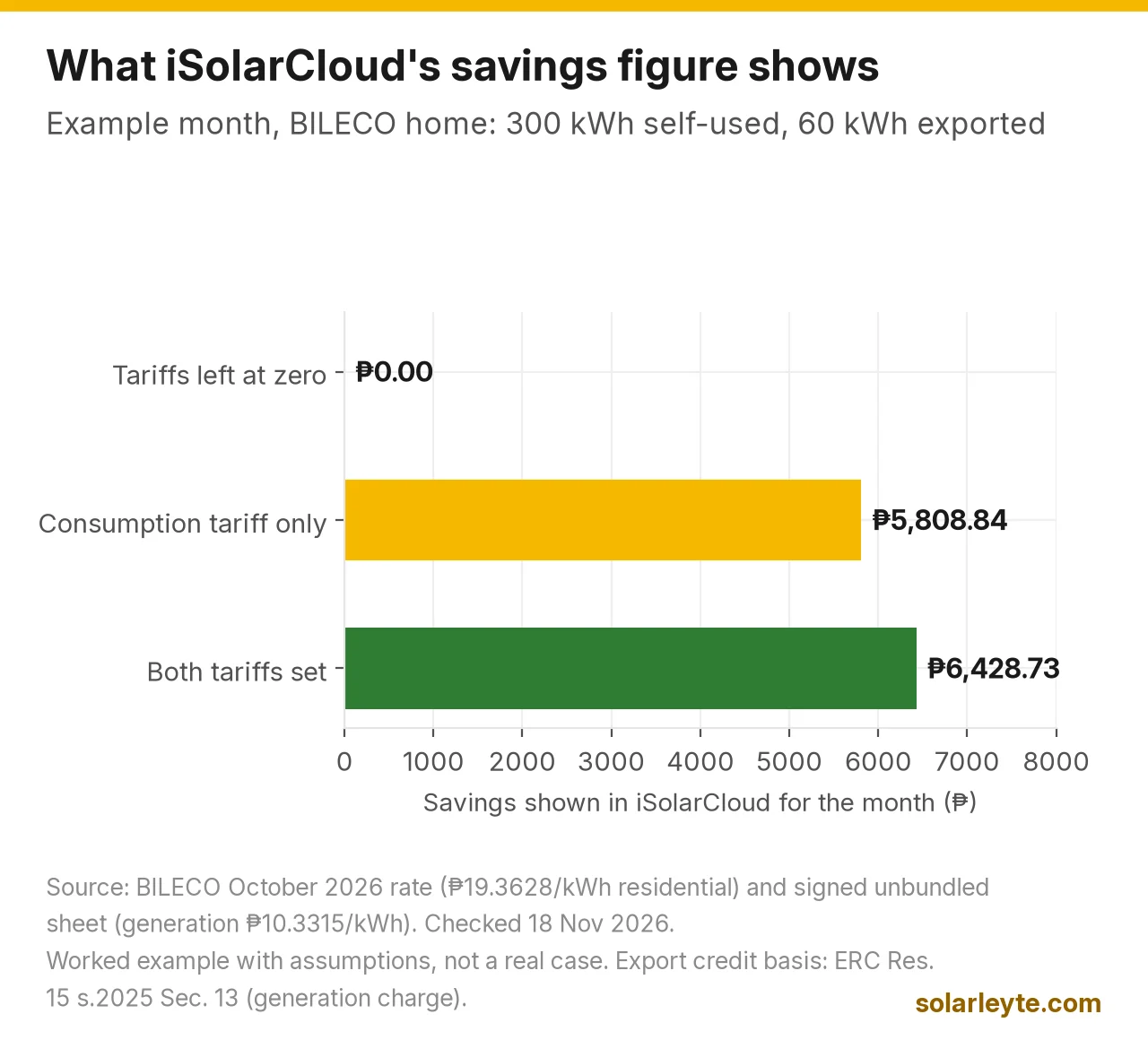
When a plant is created, iSolarCloud asks for a feed-in tariff and a consumption tariff, and Sungrow says the tariff is used for the revenue figure. If it was left blank, or set by someone abroad, the "earnings" in your app mean nothing.
Worked example B: putting BILECO's rate into the app
Example with assumptions, not a real case. A Naval home on BILECO uses 300 kWh of its own solar in a month and exports 60 kWh under net metering.
- Consumption tariff: BILECO's October 2026 residential rate, ₱19.3628 per kWh. 300 × ₱19.3628 = ₱5,808.84 saved.
- Feed-in tariff: under net metering, exports are credited at the co-op's generation charge (the system charge, excluding VAT and other generation adjustments), not the retail rate. BILECO's October 2026 unbundled sheet shows ₱10.3315 per kWh. 60 × ₱10.3315 = ₱619.89 in credits.
- Total about ₱6,428.73 for the month, if both numbers are entered. With a fixed tariff of zero, the app would show ₱0.
Rates change every month, so update the figures now and then. Use our electricity calculator to see what your own bill looks like, and our BILECO and LEYECO rate guide for the latest numbers.
Offline fixes, in a safe order
- Check the inverter light. Steady blue means power is fine. Red means an alarm.
- Check the time and the power. At night or during a brownout, a router without backup goes dark. Our Wi-Fi and Starlink brownout backup guide covers keeping it on.
- Check your internet on your phone, on the same Wi-Fi.
- Ask what changed: new modem, new password, router reset, new ISP.
- Read the WLAN light and match it to Sungrow's table above.
- Reconnect with Local Access if the WLAN light is off.
- Call your installer if the RUN light is steady red, the inverter shows a red fault, or you don't have the local login.
FAQ
Am I losing power when iSolarCloud says offline?
Usually not. If the inverter light is steady blue, it's still producing. You only lose the graphs for that time. If the inverter itself shows red, read the fault code.
Bakit offline ang iSolarCloud kahit may araw?
Tingnan muna ang ilaw ng inverter. Kung steady blue, gumagana ang solar at internet lang ang problema. Kadalasan bagong modem, bagong WiFi password, 5G lang ang network, o walang kuryente ang router dahil sa brownout. Kung patay ang WLAN light sa WiNet-S, hindi ito nakakonekta sa WiFi, kaya i-reconnect gamit ang Local Access.
Does the WiNet-S work on 5 GHz Wi-Fi?
No. Sungrow says to use the router's 2.4 GHz network. Split the bands in your modem settings if it uses one name for both.
Which iSolarCloud server should I choose in the Philippines?
International. Sungrow's app manual puts every region outside mainland China, Europe and Africa, and Australia on the International server. Choose the same server you registered on.
Can I view iSolarCloud on a computer?
Yes. The International portal is www.isolarcloud.com.hk. Log in with the same account as the app.
Solar Leyte is run by MACC Systems & Energy Solutions Inc., a solar installer in Naval, Biliran.
Get a free solar quote from MACC
Planning a new system, or an upgrade with monitoring you can trust? Send us a recent BILECO or LEYECO bill and we'll get back to you with a free, no-obligation written quote.
- Call/Text: 0955 723 5093
- Email: official@macc-inc.com
- Website: www.macc-inc.com
- Or use the site quote form: /quote
Related guides
- Grid-tie vs hybrid vs off-grid solar: which works in a brownout?
- Sungrow inverter error codes
- Sungrow inverter price in the Philippines
- FusionSolar app offline (Huawei)
- Solarman app for Deye inverters
- How net metering works in the Philippines
Sources (all checked 18 November 2026)
- Sungrow, WiNet-S/S2 Communication Module User Manual, Ver13-202601 (PDF): RUN/WLAN/LAN light meanings; 1 s and 0.2 s blink timings; multi-function button (over 30 s factory reset); RSSI better than −70 dBm, −60 dBm recommended; LAN priority; cover attenuation; shielded CAT 5E/6; Local Access, QR scan and "SG" hotspot; 2.4 GHz prerequisite; network configuration; tariffs used for revenue; reset notice; communication master switch; troubleshooting table (domains, ports 19999/16668, serial number, static IP); compatibility tables.
- Sungrow, WiNet-S/S2 Communication Module User Manual, Ver11-202507 (PDF): fault blinking defined as off 3 s, on 1 s; WLAN fault blinking after no data for 1 minute.
- Sungrow, iSolarCloud App User Manual, V216 Ver11-202505 (PDF): select the server used at registration; area-to-server table (Other Regions: International server); Forgot Password by email code; device statuses Normal, Faulty, Offline, Connecting.
- Sungrow, SH3.0–6.0RS hybrid inverter user manual, Ver13-202204 (PDF): choose the same server as when registering; EasyConnect only with a 2.4 GHz router; feed-in limitation needs the Smart Energy Meter; alarm 514 Meter Communication Abnormal fix.
- Sungrow, SH8.0RS/SH10RS hybrid inverter user manual, Ver16-202512 (PDF): WiNet-S2 connection; inverter light meanings (as in our error codes guide).
- iSolarCloud, International web portal: login page.
- BILECO, October 2026 Effective Rate (posted 20 October 2026; still the latest on 18 November 2026): residential ₱19.3628 per kWh, and the attached signed October 2026 unbundled rate schedule (generation ₱10.3315 per kWh).
- ERC, Resolution No. 15, Series of 2025, Sec. 13 (as summarised by Ocampo & Suralvo): net-metering export credits are at the co-op's generation charge, excluding VAT and other generation adjustments.
- Worked examples A and B are Solar Leyte illustrations, not real cases. 300 × ₱19.3628 = ₱5,808.84, 60 × ₱10.3315 = ₱619.89 and the ₱6,428.73 total are our calculations.