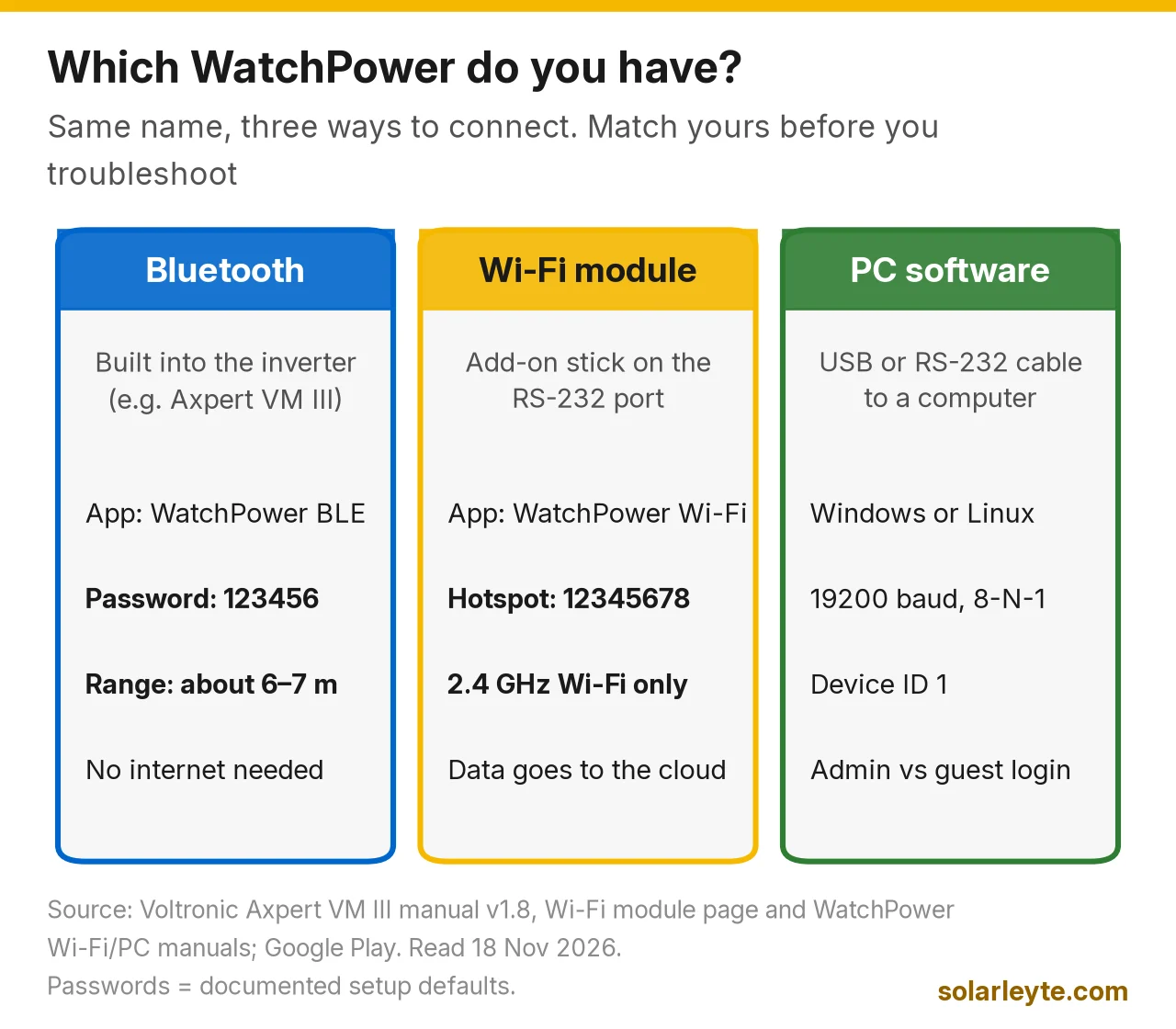
WatchPower is the free monitoring app for off-grid inverters built by Voltronic Power, the maker behind the Axpert range. It comes in three versions, and most "not working" problems start with using the wrong one. If your inverter has built-in Bluetooth (the Axpert VM III does), you pair the phone directly with password 123456 and stand within about 6 to 7 metres of the inverter. If you bought the separate Wi-Fi module, you join the module's own Wi-Fi (named after its PN, starting "Q08"), type 12345678, then give it your home 2.4 GHz Wi-Fi in the app. And if you plug a USB or RS-232 cable into a laptop, you need the WatchPower PC software, not the phone app.
Below: how to tell which one you have, the setup steps from Voltronic's manuals, what the Wi-Fi module's four lights mean, the offline fixes in a safe order, and the few settings (like 60 Hz output) worth checking on a Philippine house.
Last checked: 18 November 2026, against Voltronic's Wi-Fi module page and manuals, the Axpert VM III manual, the WatchPower Android, Wi-Fi and PC manuals, and the Google Play and Philippine App Store listings. Screens change between app versions, so follow the prompts on yours.
Which WatchPower do you have?
Check the inverter and the box it came in, not the app store. Voltronic's Axpert VM III manual lists "Built-in Bluetooth for mobile monitoring", a USB port and an RS-232 port "to PC". The Wi-Fi module is a separate stick that connects to the inverter's RS-232 port.
Version | How it connects | What you install | Password you'll need | Range / reach |
|---|---|---|---|---|
Bluetooth (built in) | Phone pairs straight to the inverter | "WatchPower BLE" on Google Play (Android) | Pairing password 123456 | About 6–7 m (VM III manual) |
Wi-Fi module (add-on) | Module on RS-232 → your router → cloud | "WatchPower Wi-Fi" (Android) or "WatchPower" (iPhone) | Module hotspot 12345678, then your own account password | 100 m in an open area (spec sheet); needs 2.4 GHz |
PC software | USB or RS-232 cable to a computer | WatchPower for Windows or Linux | An administrator password set in the software | Cable length only |
What the store listings showed on 18 November 2026:
- WatchPower Wi-Fi on Google Play: free, listed under "Potentia APP", 500K+ downloads, 3.2 stars from 3.14K reviews, updated 29 Oct 2026. Its data-safety section says "Data isn't encrypted".
- WatchPower BLE on Google Play: 100K+ downloads, last updated 26 May 2023. The listing itself says "Bluetooth pairing password is 123456."
- WatchPower on the Philippine App Store: version 2.1.2, updated 13 Nov 2026, needs iOS 15.6 or later. The older Wi-Fi manual says iOS 9, so an old iPhone may not install today's version.
If the sticker or quick guide on your dongle shows SmartESS QR codes instead, you have an Eybond Wi-Fi Plug and need a different app. Our SmartESS setup guide covers that one.
Setting up the Wi-Fi module (first time)
These steps come from Voltronic's Wi-Fi Module and WatchPower App User's Manual:
- Connect the module. It sticks to the side of the inverter with magnets and plugs into the inverter with an RJ45-to-RS-232 communication cable.
- Register. Open the app, tap Register, fill in the form and scan (or type) the Wi-Fi Module PN printed on the module. Tap Go now when "Registration success" pops up.
- Join the module's Wi-Fi. In your phone's Wi-Fi list, pick the network named after the PN (Q08 plus numbers) and enter 12345678. Go back to the app once it's connected.
- Give it your home Wi-Fi. In the Wi-Fi configuration page, enter your router's network name and password, then tap Confirm.
- If it fails, repeat steps 3 and 4. Then use Network diagnostics / Diagnose and follow the repair suggestion it shows.
The module only works on 2.4 GHz Wi-Fi with WEP or WPA/WPA2 security, per Voltronic's spec sheet. UK distributor Voltacon says the same: "A 2.4GHz Wi-Fi network must be available at the inverter location." If your router shows two network names (one often ends in "5G"), pick the 2.4 GHz one for the module.
What the Wi-Fi module's lights mean
The module has an inverter connection LED plus four status lights. Voltronic's manual defines them like this:
Light | What it tells you | If it isn't on, check… |
|---|---|---|
Inverter connection LED | Whether the inverter is powering the module (off = no power from the inverter) | Inverter switched on? Cable fully clicked in at both ends? |
PWR | Power is on | Same as above |
COM | Module ↔ inverter communication is normal | Re-seat the RS-232 cable; use the cable meant for the module |
NET | Module is connected to your router | Redo the Wi-Fi setup on 2.4 GHz; move the router closer or add an extender |
SRV | Module is connected to the internet | Does the router itself have internet? Is the modem on after a brownout? |
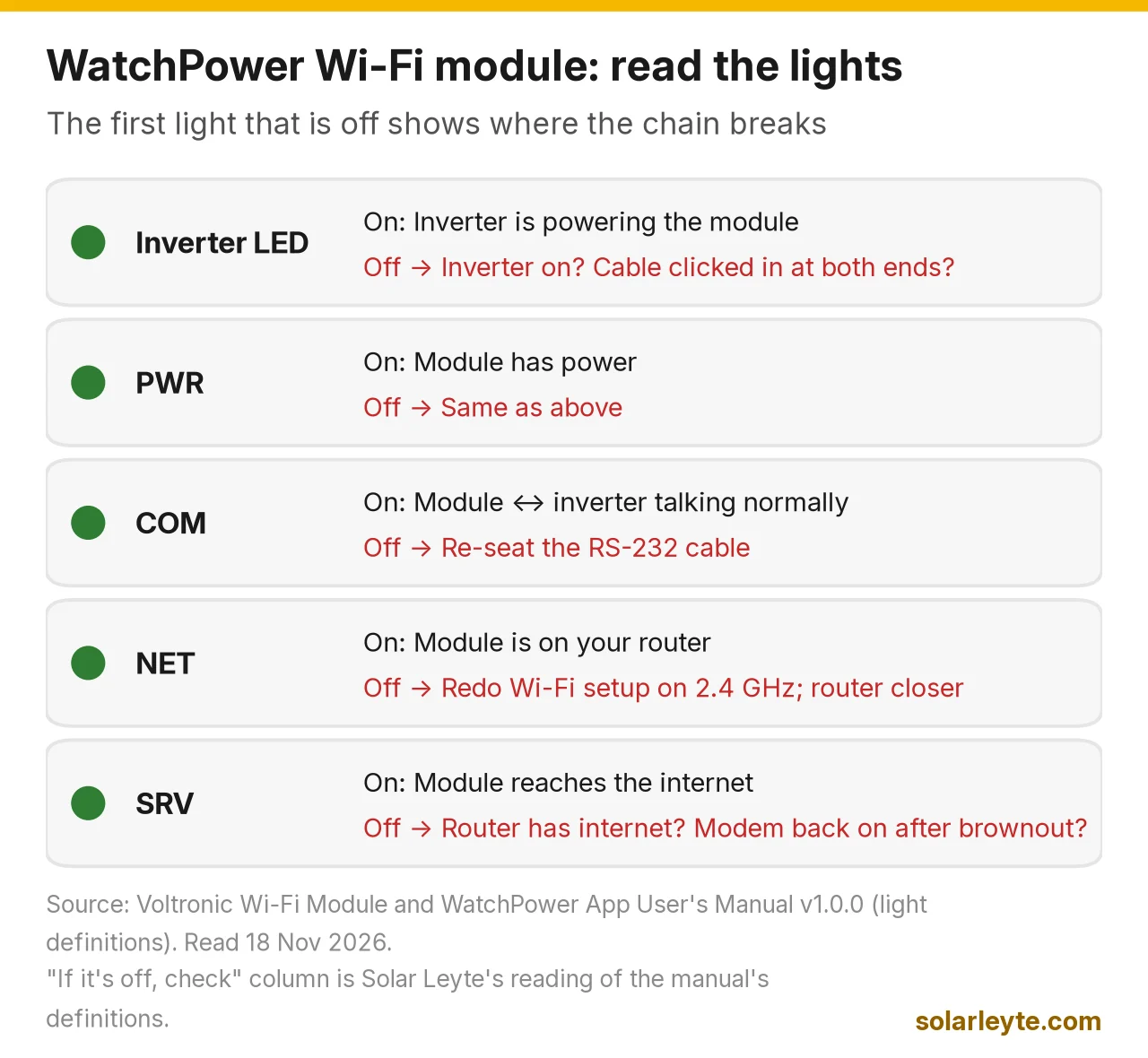
Read them left to right. The first light that's off is where the chain breaks.
WatchPower offline? Fix it in this order
Most "offline" messages are about the data link, not your solar. The app shows what the inverter reports. The inverter keeps running on its own, and its LCD still shows the same status.
- Look at the inverter's own screen first. If it shows a fault code, that's an inverter problem, not an app problem. See our MUST and Axpert error code guide. If the screen is dark, start with solar inverter not turning on.
- Check the router. After a brownout the inverter may come back on battery while your fibre modem is still off. No modem means no SRV light and an "offline" app. Our guide to keeping WiFi on in a brownout covers small UPS options.
- Changed your modem or Wi-Fi password? The module still has the old details. Redo steps 3 and 4 above.
- Read the lights with the table above.
- Run Diagnose in the app, follow its suggestion, then tap Rediagnosis.
- Still stuck? Note the PN, the lights and what the inverter screen shows, then call your installer.
Bluetooth won't pair
Bluetooth is short range. Voltronic puts the VM III's at roughly 6 to 7 metres.
Worked example A (an illustration, not a real case): your inverter is in a bodega about 10 m from the sala, with a concrete wall in between. Bluetooth won't reach from the sofa. Walk to within a few metres of the inverter, turn the phone's Bluetooth on, tap the Bluetooth icon in WatchPower, choose the inverter and enter 123456. If you want to check the system from the sala every day, the Wi-Fi module is the tool built for that.
"Wrong username or password" on the Wi-Fi app
Your account password is the one chosen when the account was registered. The 12345678 code only unlocks the module's own setup Wi-Fi. The manual only covers changing a password once you're logged in (ME → Modify password). It doesn't describe recovering a forgotten one. Google Play reviews from 2026 include owners stuck on a "user name and email mismatch" when resetting. So if an installer registered the account for you, ask them which username and email they used before you set up a new one.
Using WatchPower on a laptop
The WatchPower PC manual describes Windows and Linux software that monitors inverters "via serial port". It logs data, shows alarms and lets an administrator change settings. A guest can only look. Voltronic's VM III manual says to use the supplied serial cable and install the software from the bundled CD.
If the program can't see the inverter, check the serial settings. The PC manual's defaults are 19200 baud, 8 data bits, 1 stop bit, no parity, device ID 1. The software ships with a default administrator password, so change it on first login. If you forget it, the manual's own answer is to re-install the software.
Settings worth checking (and the ones to leave alone)
WatchPower can change real inverter settings: output and charger priority, battery type, cut-off and recharge voltages, charging current, output voltage and frequency, the buzzer, and "Restore to the defaults". Treat it like opening the inverter's settings menu.
Check that output is 60 Hz
The Philippine Distribution Code sets the grid at 60 Hz ± 0.5% (59.7 to 60.3 Hz) and lists 230 V as the low-voltage supply (Meralco Power Quality Manual, quoting the PDC). Yet the VM III manual lists 50 Hz as the factory default for output frequency (program 09), and WatchPower offers 50 Hz or 60 Hz and 220, 230 or 240 V.
In WatchPower's Basic Information, compare AC frequency (the grid coming in) with Output frequency. In Leyte or Biliran both should read about 60 Hz. If output shows 50 Hz, ask your installer to correct it. And don't tap Restore to the defaults casually: the manual says it puts all settings back to default, and on a VM III the default output frequency is 50 Hz. Your battery settings would reset too.
Battery settings must match your battery
Battery type, cut-off, "back to grid" and "back to discharge" voltages, and charging current depend on the battery. The app manual says to follow the product manual. As one documented example, Segen Solar's VM III / KING guide for Pylontech US2000 Plus/US3000 batteries recommends:
Setting (in WatchPower) | Segen's value for that Pylontech setup |
|---|---|
Back to grid voltage (SBU/SUB) | 48 V |
Back to discharge voltage | 52 V |
Battery cut-off voltage | 47 V |
C.V. and float charging voltage | 53.2 V |
Max. charging current | 20 A × number of batteries in parallel |
These numbers are for that battery only. Don't copy them onto lead-acid or another lithium brand. For how batteries share current, see solar battery series vs parallel. If your battery isn't filling up, start with solar battery not charging.
What SBU means, and what the app's numbers are worth
Output source priority has three options. Utility first runs the house from the grid. Solar first uses solar, topped up by the grid. SBU goes solar, then battery, and only falls back to the grid when the battery hits its low point.
Worked example B (assumptions, not a real reading): at night in SBU, WatchPower shows Output active power of about 800 W for 5 hours. That's 0.8 kW × 5 h = 4 kWh the battery supplied instead of BILECO. At BILECO's October 2026 residential rate of ₱19.3628 per kWh, that's about ₱77.45 of grid power for the night, before battery and inverter losses. Put your own numbers into our electricity calculator.
Worked example C (Solar Leyte calculation): the Wi-Fi module draws 2 W at most, per Voltronic's spec sheet. Left on all month: 2 W × 24 h × 30 days = 1.44 kWh, or about ₱27.88 at the same BILECO rate. That's the ceiling, since it's based on maximum draw.
Leave these alone unless you know why
- Buzzer off: the manual says alarms then stay silent when a fault happens.
- Overload / over-temperature auto restart off: the inverter then stays off after that fault until someone restarts it.
- Equalization: only turn it on if your battery's maker calls for it. The manual's range is 5–900 minutes, every 0–90 days.
FAQ
Ano ang default password ng WatchPower?
Depende sa koneksyon. Bluetooth pairing: 123456. Wi-Fi module setup hotspot: 12345678. Your login password is the one set when the account was registered.
Is WatchPower the same as SmartESS?
No. They're separate apps for different dongles. WatchPower goes with Voltronic's Bluetooth and Wi-Fi module. SmartESS goes with Eybond's Wi-Fi Plug Pro. The QR code on the dongle or its quick guide tells you which one you need.
Will my solar stop working if WatchPower is offline?
No. The app only displays and changes settings. The inverter keeps following its own settings, and its screen still shows status and fault codes.
Can I use 5 GHz Wi-Fi?
No. Voltronic's module only works on 2.4 GHz.
Can I monitor more than one inverter?
Yes. The Wi-Fi app's Device List lets you add more modules by PN, and the PC software can watch several inverters over serial ports.
Solar Leyte is run by MACC Systems & Energy Solutions Inc., a solar installer in Naval, Biliran.
Get a free solar quote from MACC
Planning a new system, or a hybrid setup with monitoring that's easy to read? Send us a recent BILECO or LEYECO bill and we'll get back to you with a free, no-obligation written quote.
- Call/Text: 0955 723 5093
- Email: official@macc-inc.com
- Website: www.macc-inc.com
- Or use the site quote form: /quote
Related guides
- Grid-tie vs hybrid vs off-grid solar: which works in a brownout?
- MUST and Axpert inverter error codes
- SmartESS app setup and fixes
- Solarman app for Deye inverters
- Off-grid solar in the Philippines
- BILECO rate per kWh 2026
Sources (all checked 18 November 2026)
- Voltronic Power, Wi-Fi Module product page and spec sheet: works with the WatchPower app; 802.11 b/g/n; WEP, WPA/WPA2; 2.4G; 100 m (open environment); RS232 local interface; AP/STA; 5–12 V external power; 2 W max power consumption.
- Voltronic Power, Wi-Fi Module and WatchPower App User's Manual v1.0.0 (PDF, MPP Solar copy, 29 Nov 2019): inverter connection LED, PWR/COM/NET/SRV definitions; RJ45-to-RS-232 cable; "WatchPower" (App Store) / "WatchPower Wi-Fi" (Google Play); Android 5.0 / iOS 9.0; registration, PN Q08…, default password 12345678; Diagnose; Device List; Modify password; Parameter Setting (output, battery, equalization 5–900 min / 0–90 days, enable/disable items, restore defaults).
- Voltronic Power, Axpert VM III user manual v1.8 (PDF): built-in Bluetooth, USB and RS-232 ports; WatchPower Bluetooth password 123456, range about 6–7 m; serial cable and bundled CD; program 01 output source priority (Utility first default, Solar first, SBU); program 09 output frequency, 50 Hz default.
- WatchPower Android (Bluetooth) user manual (PDF, MPP Solar copy): Bluetooth pairing, default password 123456; output voltage 220/230/240 and 50/60 Hz options; battery parameter definitions.
- WatchPower PC software user manual (PDF, MPP Solar copy): serial-port monitoring; Windows and Linux; administrator vs guest; re-install if the password is forgotten; Modbus serial defaults 19200 baud, 8 data bits, 1 stop bit, no parity, device ID 1.
- Segen Solar, Axpert VMIII / KING with Pylontech US2000 Plus/US3000 guide (PDF): WatchPower.exe serial setup at 19200 baud; max charging current N × 20 A; back to grid 48 V, back to discharge 52 V, cut-off 47 V, C.V./float 53.2 V.
- VoltaconSolar, Wi-Fi Module for Conversol and Axpert King: "A 2.4GHz Wi-Fi network must be available at the inverter location."
- Google Play, WatchPower Wi-Fi (Potentia APP; 500K+ downloads; 3.2 stars, 3.14K reviews; updated 29 Oct 2026; "Data isn't encrypted"; reviews incl. a 22 Jul 2026 password-reset complaint) and WatchPower BLE (100K+ downloads; updated 26 May 2023; "Bluetooth pairing password is 123456").
- Apple App Store Philippines, WatchPower: version 2.1.2, released 13 Nov 2026, requires iOS 15.6 or later.
- Meralco, Power Quality Manual (PDF): quotes the Philippine Distribution Code, 60 Hz ± 0.5% (59.7–60.3 Hz) and 230 V low-voltage supply.
- BILECO, October 2026 effective rate: residential ₱19.3628 per kWh (still the newest posted on 18 Nov 2026).
- Solar Leyte calculations (labelled in the text): 0.8 kW × 5 h = 4 kWh × ₱19.3628 = ₱77.45; 2 W × 24 h × 30 days = 1.44 kWh × ₱19.3628 = ₱27.88.